In Part 1, we built the vault. We learned how to securely store passwords using bcrypt hashing and Mongoose pre-save hooks. A user can now register, and their password is safe—even if a hacker steals the database.
But here's the problem: A secure vault is useless if anyone can walk through the front door.
Right now, your API has no concept of "logged in" vs "logged out." Anyone can hit any endpoint. There's no way to prove identity. A user might have registered, but they can't actually use their account.
Today, we fix that.
Welcome to Part 2 of our Authentication Series, where we build the Login System and introduce JSON Web Tokens (JWT)—the digital badge that proves you are who you claim to be.
By the end of this post, you'll have:
- A login endpoint that verifies credentials
- JWT tokens that authenticate users
- Protected routes that only authenticated users can access
- A professional, production-ready auth flow
Let's hire the bouncer.
The Authentication Dance: How Login Works
Before we write code, let's understand the flow. Think of logging in like entering a secure office building:
- You arrive at the front desk (Send login request with email + password)
- Security checks your ID (Server compares password hash)
- If valid, they give you a badge (Server generates a JWT)
- You show the badge at every door (Client sends JWT with each request)
- Guards verify your badge before letting you in (Middleware verifies JWT)
The key insight: The server doesn't "remember" you. Instead, you carry proof of your identity (the JWT) with you everywhere.
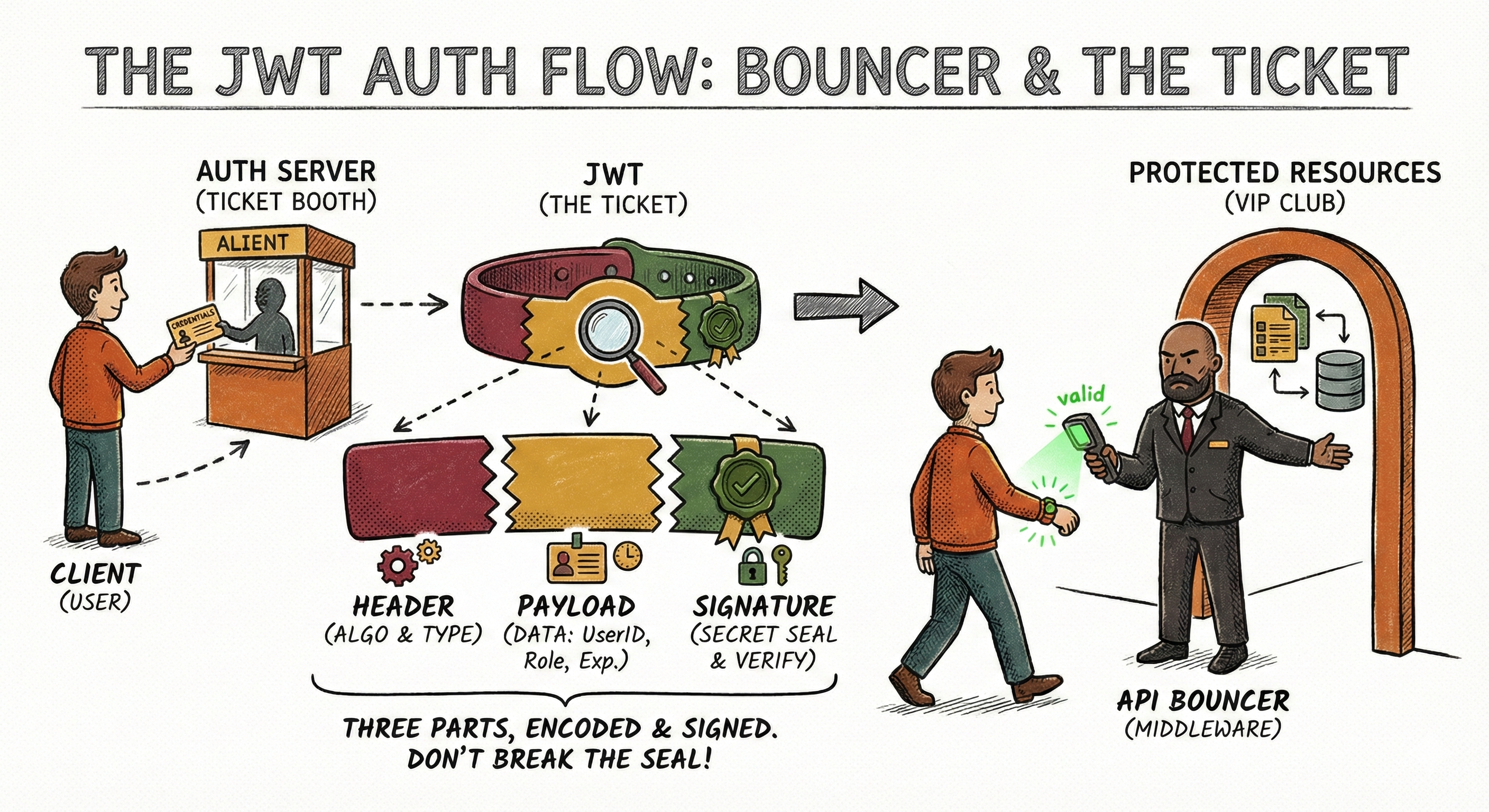
What is a JWT? (The Digital Badge)
JWT stands for JSON Web Token. It's a compact, URL-safe string that contains information about a user and is cryptographically signed to prevent tampering.
Here's what one looks like:
eyJhbGciOiJIUzI1NiIsInR5cCI6IkpXVCJ9.eyJ1c2VySWQiOiI2MjMiLCJlbWFpbCI6ImFsaWNlQGV4YW1wbGUuY29tIiwiaWF0IjoxNjc2ODcyNTU4LCJleHAiOjE2NzY4NzYxNTh9.4xF1Gk3bN9J8nK2pL5mQ6rS7tU8vW9xY0zA1bC2dE3f
It looks like gibberish, but it's actually three parts separated by dots:
The Three Parts of a JWT
1. Header (Algorithm & Token Type)
{
  "alg": "HS256",
  "typ": "JWT"
}
2. Payload (The actual data you want to store)
{
  "userId": "623",
  "email": "[email protected]",
  "iat": 1676872558,  // Issued At
  "exp": 1676876158   // Expiration
}
3. Signature (The security seal)
HMACSHA256(
  base64UrlEncode(header) + "." + base64UrlEncode(payload),
  your-secret-key
)
Why JWTs are Secure
The signature is created using a secret key that only your server knows. If someone tries to change the payload (e.g., change "userId": "623" to "userId": "1"), the signature becomes invalid, and the server rejects it.
🔍 Try it yourself: Visit jwt.io and paste a JWT. You'll see it decoded into its three parts. Try changing the payload and watch the signature turn red—that's why JWTs can't be forged.
Important Security Note
Anyone can READ a JWT (it's just base64-encoded, not encrypted). Never put sensitive data like passwords or credit card numbers in a JWT. Only store:
- User ID
- Username
- Roles/Permissions
The Implementation: Building the Login System
Now let's build this step by step.
Step 1: Install JWT Library
npm install jsonwebtokenStep 2: Set Up Environment Variables
We need a secret key to sign our JWTs. This should be a long, random string that never gets committed to Git.
Update: .env
PORT=3000
MONGO_URI=mongodb://localhost:27017/mydatabase
NODE_ENV=development

# JWT Configuration
JWT_SECRET=your_super_secret_key_change_this_in_production_use_at_least_32_characters
JWT_EXPIRY=15m
⚠️ Critical Security: In production, generate a random secret using:
node -e "console.log(require('crypto').randomBytes(64).toString('hex'))"Step 3: Add Password Comparison Method to User Model
We need a way to compare the password someone types during login with the hashed password in the database.
Update: src/models/user.model.js
Add this method after the pre('save') hook we built previously:
// Method to compare passwords during login
userSchema.methods.comparePassword = async function(candidatePassword) {
    return await bcrypt.compare(candidatePassword, this.password);
};

// Method to generate a JWT token
userSchema.methods.generateAuthToken = function() {
    return jwt.sign(
        {
            userId: this._id,
            email: this.email
        },
        process.env.JWT_SECRET,
        { expiresIn: process.env.JWT_EXPIRY || '15m' }
    );
};
Don't forget to import jsonwebtoken at the top:
import jwt from 'jsonwebtoken';What's Happening Here?
comparePassword: Uses bcrypt'scompare()method. It hashes the candidate password with the same salt and checks if it matches the stored hash.generateAuthToken: Creates a JWT with the user's basic info and signs it with our secret key. The token expires in 15 minutes.
Step 4: Create the Login Controller
Now we build the actual login logic.
Update: src/controllers/user.controller.js
Add this new function:
export const loginUser = asyncHandler(async (req, res) => {
    const { email, password } = req.body;

    // Validation
    if (!email || !password) {
        throw new ApiError(400, 'Email and password are required');
    }

    // Find user by email
    const user = await User.findOne({ email });

    if (!user) {
        throw new ApiError(401, 'Invalid email or password');
    }

    // Compare password
    const isPasswordValid = await user.comparePassword(password);

    if (!isPasswordValid) {
        throw new ApiError(401, 'Invalid email or password');
    }

    // Generate JWT token
    const token = user.generateAuthToken();

    // Remove sensitive data before responding
    const userResponse = user.toObject();
    delete userResponse.password;

    return res.status(200).json(
        new ApiResponse(
            200,
            { user: userResponse, token },
            'User logged in successfully'
        )
    );
});
Breaking It Down:
- Validation: Check that both email and password are provided.
- Find User: Look up the user by email. If not found, return a generic error.
- Verify Password: Use the
comparePasswordmethod we added to the model. - Generate Token: If password is correct, create a JWT.
- Security Response: Remove password from response and send back user data + token.
🔒 Security Note: We return the same error message ("Invalid email or password") whether the email doesn't exist or the password is wrong. This prevents attackers from discovering which emails are registered.
Step 5: Create the Login Route
Update: src/routes/user.routes.js
import express from 'express';
import {
    getUsers,
    createUser,
    deleteUser,
    registerUser,
    loginUser  // Add this import
} from '../controllers/user.controller.js';

const router = express.Router();

// Public routes (no authentication required)
router.post('/register', registerUser);
router.post('/login', loginUser);  // Add this line

// Other routes
router.get('/', getUsers);
router.post('/', createUser);
router.delete('/:id', deleteUser);

export default router;
Testing the Login Flow
Let's test our login endpoint.
1. First, Register a User
POST http://localhost:3000/users/register
Content-Type: application/json

{
  "name": "Bob",
  "email": "[email protected]",
  "password": "securePass123"
}
2. Then, Login
POST http://localhost:3000/users/login
Content-Type: application/json

{
  "email": "[email protected]",
  "password": "securePass123"
}
Expected Response:
{
  "statusCode": 200,
  "data": {
    "user": {
      "name": "Bob",
      "email": "[email protected]",
      "_id": "...",
      "createdAt": "...",
      "updatedAt": "..."
    },
    "token": "eyJhbGciOiJIUzI1NiIsInR5cCI6IkpXVCJ9..."
  },
  "message": "User logged in successfully",
  "success": true
}
Copy that token. You'll need it for the next part.
Protecting Routes: The Guard at the Door
Right now, anyone can still call /users and see all users. Let's fix that by creating authentication middleware—a guard that checks for a valid token before allowing access.
Step 1: Create Auth Middleware
Create: src/middlewares/auth.middleware.js
import jwt from 'jsonwebtoken';
import { ApiError } from '../utils/ApiError.js';
import { asyncHandler } from '../utils/asyncHandler.js';

export const authenticate = asyncHandler(async (req, res, next) => {
    // Get token from Authorization header
    const authHeader = req.headers.authorization;

    if (!authHeader || !authHeader.startsWith('Bearer ')) {
        throw new ApiError(401, 'Access denied. No token provided.');
    }

    // Extract token (format: "Bearer <token>")
    const token = authHeader.split(' ')[1];

    try {
        // Verify token
        const decoded = jwt.verify(token, process.env.JWT_SECRET);

        // Attach user info to request object
        req.user = decoded;

        // Continue to next middleware/controller
        next();
    } catch (error) {
        if (error.name === 'TokenExpiredError') {
            throw new ApiError(401, 'Token has expired. Please login again.');
        }
        throw new ApiError(401, 'Invalid token. Access denied.');
    }
});
What's Happening Here?
- Check for Authorization Header: Look for
Authorization: Bearer <token>in the request headers. - Extract Token: Split the header and grab the token part.
- Verify Token: Use
jwt.verify()to check if the token is valid and not expired. - Attach User to Request: If valid, decode the token and attach user info to
req.userso controllers can access it. - Error Handling: Catch specific JWT errors like expiration.
Step 2: Protect Your Routes
Now we can add the authenticate middleware to any route we want to protect.
Update: src/routes/user.routes.js
import express from 'express';
import {
    getUsers,
    createUser,
    deleteUser,
    registerUser,
    loginUser
} from '../controllers/user.controller.js';
import { authenticate } from '../middlewares/auth.middleware.js';

const router = express.Router();

// Public routes (anyone can access)
router.post('/register', registerUser);
router.post('/login', loginUser);

// Protected routes (require authentication)
router.get('/', authenticate, getUsers);
router.post('/', authenticate, createUser);
router.delete('/:id', authenticate, deleteUser);

export default router;
Now these routes are locked. They require a valid JWT token in the Authorization header.
Testing Protected Routes
1. Try Without Token (Should Fail)
GET http://localhost:3000/usersExpected Response:
{
  "statusCode": 401,
  "message": "Access denied. No token provided.",
  "success": false
}
Perfect! The bouncer is working.
2. Try With Token (Should Work)
GET http://localhost:3000/users
Authorization: Bearer eyJhbGciOiJIUzI1NiIsInR5cCI6IkpXVCJ9...
Expected Response:
{
  "statusCode": 200,
  "data": [
    { "name": "Bob", "email": "[email protected]", ... }
  ],
  "message": "Users fetched successfully",
  "success": true
}
Success! The token was verified and you gained access.
Accessing User Info in Controllers
Now that req.user contains the authenticated user's data, you can use it in your controllers.
For example, let's create a "Get Current User" endpoint:
Add to src/controllers/user.controller.js:
export const getCurrentUser = asyncHandler(async (req, res) => {
    // req.user is populated by the authenticate middleware
    const user = await User.findById(req.user.userId).select('-password');

    if (!user) {
        throw new ApiError(404, 'User not found');
    }

    return res.status(200).json(
        new ApiResponse(200, user, 'Current user fetched successfully')
    );
});
Add to src/routes/user.routes.js:
router.get('/me', authenticate, getCurrentUser);Now, any authenticated user can call GET /users/me to get their own profile.
The Complete Flow (Putting It All Together)
Let's visualize the entire authentication journey:
1. User Registers
   → POST /users/register { email, password }
   → Server hashes password with bcrypt
   → User saved to database
   → Response: { user }

2. User Logs In
   → POST /users/login { email, password }
   → Server finds user by email
   → Server compares hashed passwords
   → If valid: Generate JWT
   → Response: { user, token }

3. User Accesses Protected Route
   → GET /users/me
   → Headers: Authorization: Bearer <token>
   → Middleware verifies JWT
   → If valid: Attach user to req.user
   → Controller accesses req.user
   → Response: { data }
Security Best Practices
✅ Do This:
- Use a strong, random JWT secret (at least 32 characters)
- Set short expiration times (15 minutes for access tokens)
- Never store sensitive data in JWT payload
- Always use HTTPS in production
- Return generic error messages for login failures
- Validate tokens on every protected request
❌ Never Do This:
- Store the JWT secret in your code (always use .env)
- Put passwords or credit cards in JWT payload
- Use long expiration times (like 30 days) for access tokens
- Send tokens in URLs or query parameters
- Forget to handle expired tokens
- Trust client-side token validation alone
Token Storage: Where Should Clients Store JWTs?
This is a hotly debated topic:
Option 1: localStorage (Simple but vulnerable to XSS)
- Easy to implement
- Vulnerable to cross-site scripting attacks
- Good for: Internal tools, trusted environments
Option 2: HTTP-only Cookies (More secure)
- Protected from JavaScript access (XSS protection)
- Requires CSRF protection
- Good for: Production web apps
Option 3: Memory (Most secure but inconvenient)
- Lost on page refresh
- Requires refresh tokens
- Good for: High-security applications
💡 Our Recommendation: For most applications, use HTTP-only cookies (we'll cover this in Part 3) combined with short-lived access tokens and refresh tokens.
Summary
You've just built a complete JWT authentication system. Let's recap what we accomplished:
- The Login Gate: Users can now submit credentials and receive a JWT token
- The Password Checker: We verify passwords using
bcrypt.compare()without ever storing them in plain text - The Digital Badge: We generate signed JWTs that prove user identity
- The Security Guard: We created middleware that verifies tokens on every protected route
- The Locked Doors: We protected routes so only authenticated users can access them
But we still have an issue.
Right now, our access tokens expire in 15 minutes (which is good for security). But that means users have to log in again every 15 minutes (which is bad for user experience).
In a real application, you don't want to force users to re-enter their password every 15 minutes. That's where Refresh Tokens come in.
In Part 3: Refresh Tokens & Advanced Security, we'll solve this problem.
We'll learn how to:
- Implement a two-token system (short-lived access + long-lived refresh)
- Store refresh tokens securely in the database
- Automatically issue new access tokens without re-login
- Implement logout functionality that revokes tokens
- Use HTTP-only cookies for maximum security
Authentication isn't complete until the user experience is complete. Part 3 brings it all together.
See you in the next post!
Happy coding!